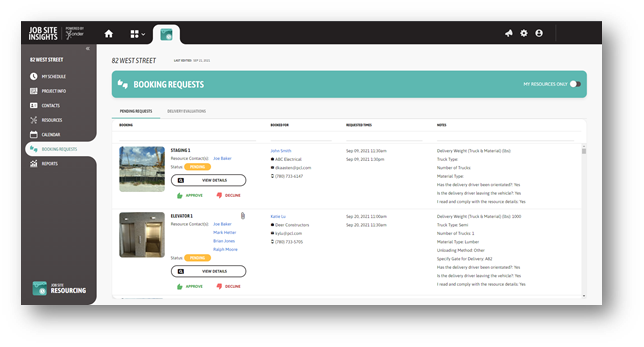
# Booking Requests
# Create a Booking Request
With User permissions to Job Site Resourcing, create booking requests for project resources in two ways:
Find the resource to book from the Resources tab, choose the Book Resource function, and complete the booking request form:

Open the calendar, double click on the date/time range in the calendar and complete the booking request form.
The submitted booking request will either be approved immediately or queued up for an Administrator to review and approve.
Scheduling Assistant
Selecting ‘Scheduling Assistant’ will suggest available time slots for the selected resource based on the selected booking date and time.
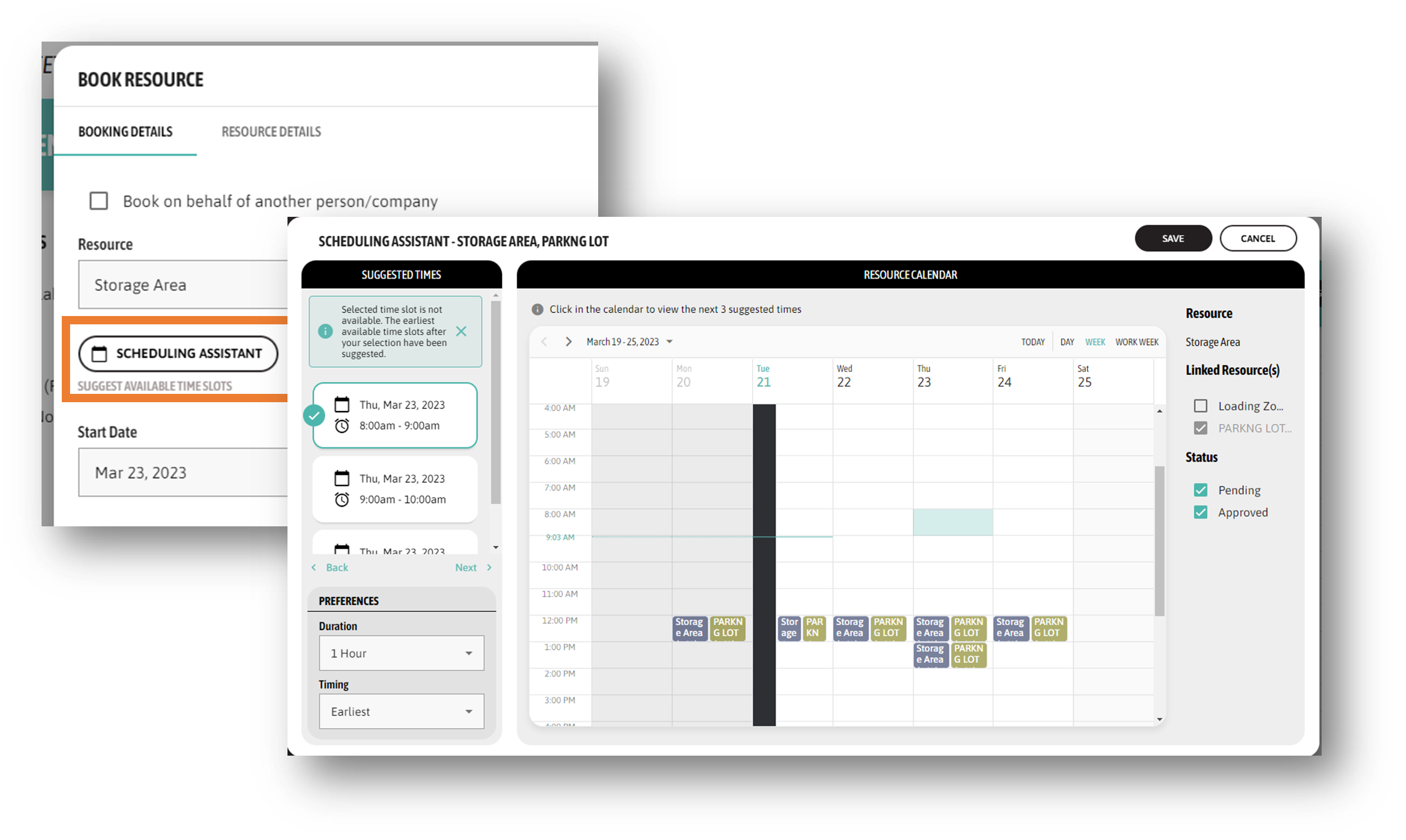
Preferences option provides the user with suggested time slots to be earliest from selected date and time or this week or next week.
Linked Resources
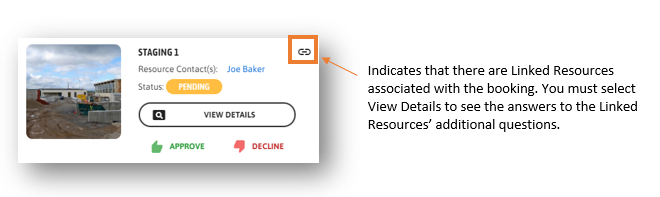
The Linked Resources function allow you to book relate, multiple resources to use at the same time in a single booking. In some cases, additional resources will be automatically linked to your booking as they are mandatory when using the primary resource. In other cases, you will be able to optionally select additional resources that will be needed to complete the delivery.
- In Use: This is the situation where two or more resources should be booked together as they will all be used to complete the delivery. An example is where the Crane is being used to offload the material and the Elevator is being used to move the material. Both resources are used, and need to be reserved and available as part of this specific delivery request.
- Idle: This is the scenario where if you book a specific resource it may impact or be dependent on another resource and also needs to be reserved, but not technically required for the delivery. The example for an Idle Linked Resource is for project sites where a Crane has obstacles – like the location of the loading dock or a Zoom Boom, and as a result, when the Crane is used the Loading Dock cannot be, so both need to be reserved. Otherwise the Loading Dock is a bookable resource on its own.
Multiple Bookings at Once
If a resource allows multiple bookings at once and bookings have fixed start and end times, users may specify the quantity of bookings they wish to create at once if they want to book for more than one person from the same company.
Recurring Bookings
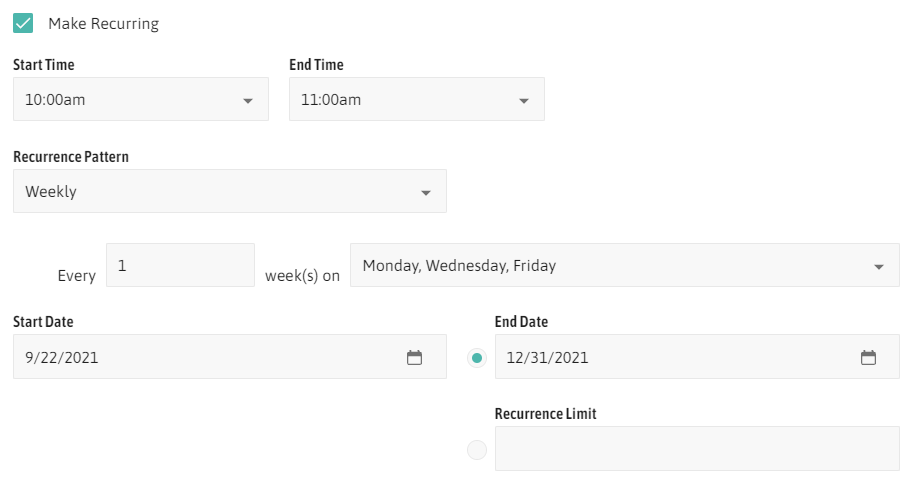
If a resource is configured to allow recurring bookings, create multiple bookings that at the same time in a regular pattern. After choosing the resource and start and end times, check the Recurring Bookings checkbox.
- Recurrence pattern dictates on which days the booking will be created
- Daily patterns
- Every [#] days: bookings will be creating in intervals starting with the Start Date
- Every weekday: bookings will be created on Mondays, Tuesdays, Wednesdays, Thursdays, and Fridays
- Every weekend: bookings will be created on Saturdays and Sundays
- Weekly patterns
- Every [#] week(s) on [days of the week]: bookings will be created in weekly intervals on the specified days of the week
- Daily patterns
- Start Date is the first day the booking will be created on if the pattern is valid on that date.
- To end the recurrence pattern, choose either a specific date with the End Date field or the Recurrence limit for the total number of bookings to create.
If the resource has forms, download the forms by clicking the form triggering download it to your device.
To upload a document, click the blue area to select a file or drag the file to the blue area.
Copying Bookings
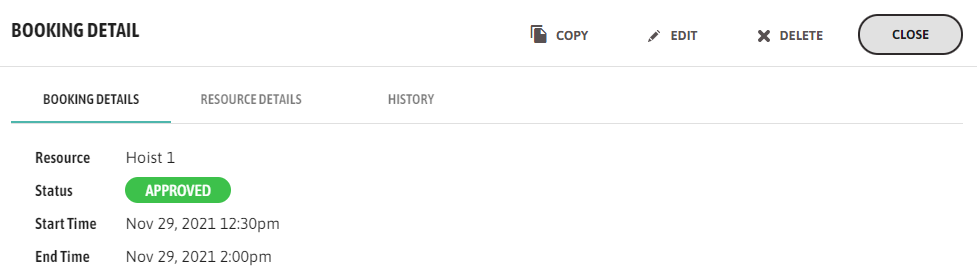
To use the details of an existing booking in a new booking, select the Copy button in the top right of the existing booking’s Booking Details window to copy its resources, additional questions, and notes. Dates and files will not be copied to the new booking.
# Delivery Evaluations Summary and Setup:
Delivery Evaluations allow project teams to optionally capture the details of what happened with the delivery. Was the driver/delivery on-time for both start and end times? Did the delivery go according to ‘plan’? Projects tracking this information can use reporting statistics/dashboards including tracking companies where deliveries are routinely late/delayed or No Show.
Projects will have ability to configure if Delivery Evaluations will be captured per resource, and then decide if Delivery Evaluations will be mandatory for the resource. If mandatory, a new tab within the Booking Requests page will appear. In this tab, booking requests will queue up on the booking’s requested start date for the Administrator or the Coordinator roles – for those resources they are assigned – to complete the delivery information.
To complete the setup for Delivery Evaluations, perform the following steps:
- When defining each resource, decide if Delivery Evaluations will be captured, and if yes, then decide if the evaluation for each booking should be mandatory, or optional.
- Under the Managed Lists tab, define any Late End Reasons or Late Start Reasons that should be used to track in the Delivery Evaluations to the respective lists. Administrators or Coordinators will choose from this list of reasons when completing the evaluations.
To complete a Delivery Evaluation for a booking request, access the form in one of the following ways:
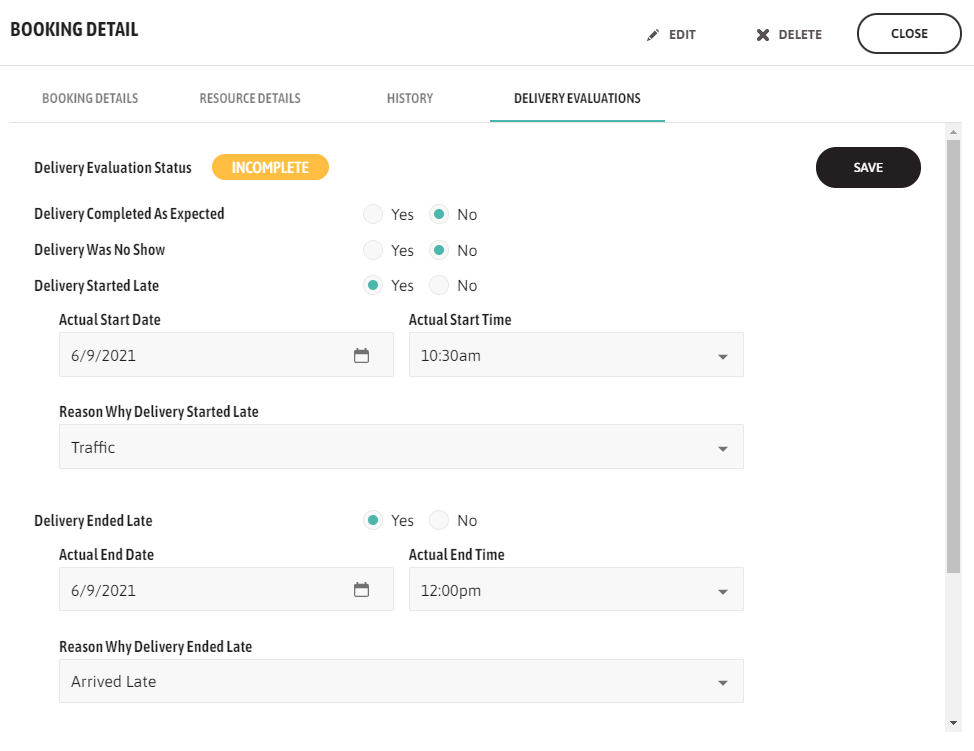
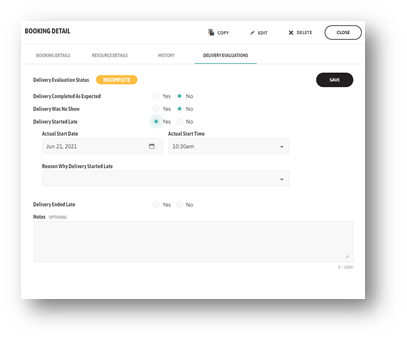
- Select and open the booking request from the Calendar or My Schedule page, go to the Delivery Evaluation tab, record the evaluation details, and press Save.
- If Delivery Evaluations are mandatory for at least one resource, a new tab under the Booking Requests page called “Delivery Evaluations” will appear and show a list of all incomplete delivery evaluations. Choose the booking request from the list, record the evaluation details, and press Save. Completed Delivery Evaluations will be removed from this list.
# Administrators / Coordinators
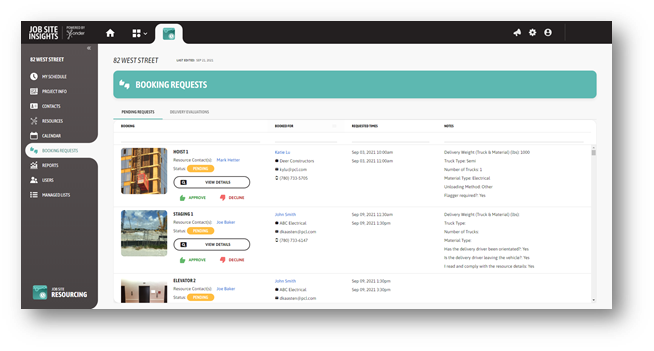
Use this page to view all pending booking requests for the project or to complete mandatory Delivery Evaluations.
# Review Pending Booking Requests
Administrators are able to view the request details and approve or decline the requests for resources when viewing booking requests from the Pending Requests tab.
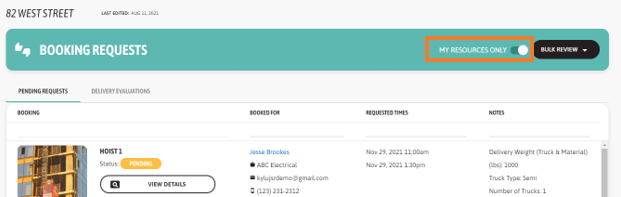
Coordinators will have the same functions, with the exception is that their list of pending requests on the page will be initially filtered to only the resources they are assigned to as part of their Coordinator user role. Coordinators will be able to undo the filter and see all the bookings if required.
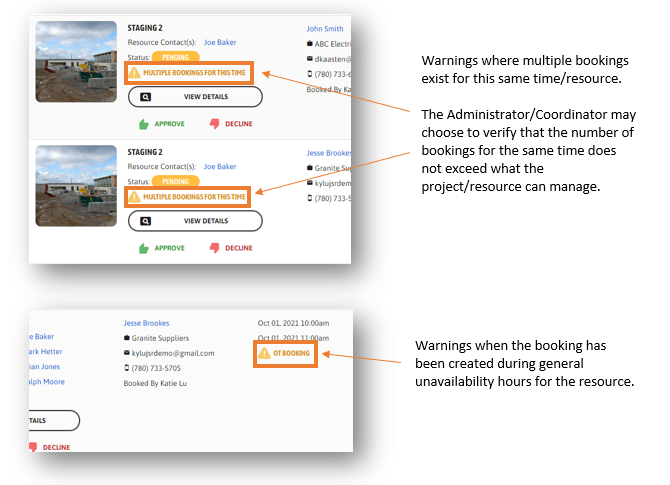
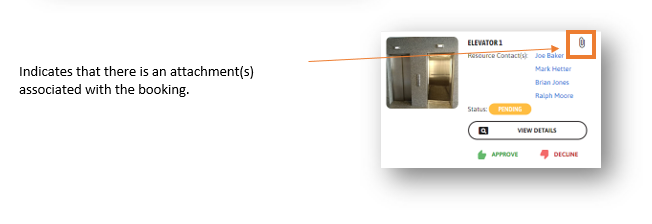
In some cases, there will may be special warnings to Administrators/Coordinators indicating unique conditions of the booking that the Administrator/Coordinator should be aware of when reviewing the booking, and either approving, modifying, or declining:
Bulk Reviews
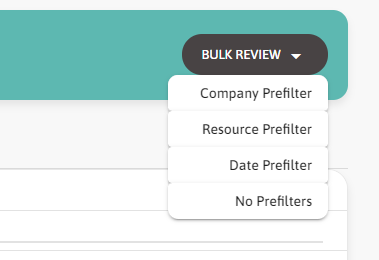
To approve or decline multiple booking requests at once, select the Bulk Review button in the top right of the page. Choose whether to filter the bookings by Company, Resource, or start and end dates, and then select the bookings to approve or decline via the checkboxes on the right.
# Completing Delivery Evaluations
To complete Delivery Evaluations, open the Delivery Evaluation and select the View Details button on the booking request.
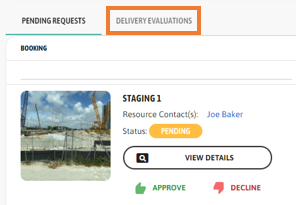
Complete the details that occurred over the event of the delivery. In all cases JSR allows the ability to capture notes, such as record damaged materials or any other conditions.
The Late Delivery Start Reasons and Late Delivery End Reasons are configured ahead of time in the Managed List area of JSR.